Tiptap
WYSIWYG 에디터 라이브러리.
Npm
에디터 핵심 엔진
npm install @tiptap/core
에디터 React 바인딩
npm install @tiptap/react
에디터 기본 Node(heading, paragraph, image..),Mark(bold, italic..) extension
npm install @tiptap/starter-kit에디터 생성
import { EditorContent, useEditor } from "@tiptap/react";
import StarterKit from "@tiptap/starter-kit";

import './App.css'

function App() {
  const editor = useEditor(
    {
      extensions: [
        StarterKit,
      ],
      content: "", // 초기 값
      onUpdate: ({ editor }) => {
        // editor 값이 변경될 때마다 실행할 로직
      },
    },
    [] // Editor 인스턴스를 최초 1회만 생성
  );

  return (
    <div className="app-component">
      <EditorContent editor={editor} className="editor-content" />
    </div>
  )
}

export default App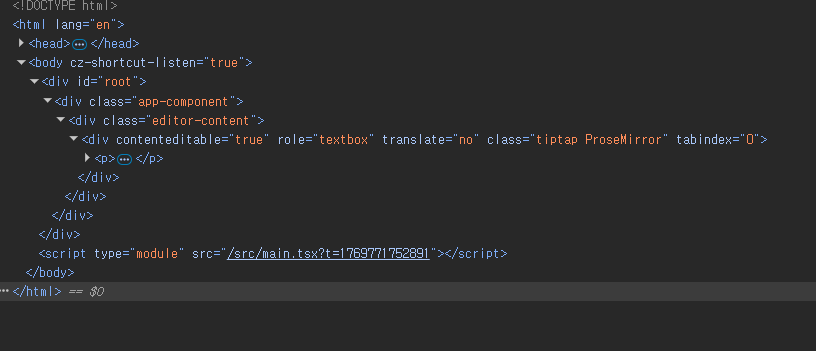
extension 추가
import { EditorContent, useEditor } from "@tiptap/react";
import StarterKit from "@tiptap/starter-kit";
import Image from "@tiptap/extension-image";
import TextAlign from "@tiptap/extension-text-align";

import './App.css'

function App() {
  const editor = useEditor(
    {
      extensions: [
        StarterKit,
        Image, // StarterKit에 없는 extension 추가.
        TextAlign.configure({
          type: ["paragraph", "heading"], // textAlign을 적용할 수 있는 Node모음.
        })
      ],
      content: "",
    },
    [] // Editor 인스턴스를 최초 1회만 생성
  );

  return (
    <div className="app-component">
      <EditorContent editor={editor} className="editor-content" />
    </div>
  )
}

export default App○ StarterKit에 없는 extension들을 npm install 한 후, useEditor와 함께 사용.
extension 확장
import TextAlign from '@tiptap/extension-text-align';

const extendedTextAlign = TextAlign.extend({
  addCommands() {
    return {
      ...this.parent?.(), // TextAlign extension의 기존 기능을 유지
      toggleTextAlign: (alignment) => ({ editor, commands, state }) => {
        const { selection } = state;
        /*
        * $from은 selection이 시작하는 위치.
        * 현재 선택 영역이 위치한 부모 노드의 타입 이름을 가져오는 ProseMirror 구문.
        */
        const nodeType = selection.$from.parent.type.name;

        return !editor.isActive({ textAlign: alignment })
          ? commands.updateAttributes(nodeType, { textAlign: alignment })
          : commands.resetAttributes(nodeType, ['textAlign']);
      }
    };
  },
});

export default extendedTextAlign;○ extend 메서드로 기존 extension 기능을 확장할 수 있다.
○ 위 코드는 기존 TextAlign extension에 toggleTextAlign 명령어를 추가하는 기능.
○ 추가한 toggleTextAlign의 반환 값은 toggleTextAlign 명령어 실행의 성공 여부를 나타내는 boolean.
툴바 생성 (기본)
import { useRef } from "react";
import { Editor, useEditorState } from "@tiptap/react"

type Props = {
  editor: Editor;
};

const TiptapToolbar = ({ editor }: Props) => {
  const fileInputRef = useRef<HTMLInputElement | null>(null);

  /*
  * useEditorState의 반환 값은 selector 콜백함수의 반환 값.
  */
  const { isBoldActive } = useEditorState({
    editor,
    selector: () => ({
      isBoldActive: editor?.isActive("bold") ?? false
    }),
  }) as { isBoldActive: boolean };

  const handleImageUpload = (e: React.ChangeEvent<HTMLInputElement>) => {
    if (!editor) {
      return;
    }

    const file = e.target.files?.[0];
    if (!file) {
      return;
    }

    const reader = new FileReader();
    reader.readAsDataURL(file);
    reader.onload = () => {
      const base64 = reader.result as string;
      editor.chain().focus().setImage({ src: base64 }).run();
    };
  };

  return (
    <div>
      <button
       type="button"
       onClick={() => editor.chain().focus().toggleBold().run()}
      />
      <button
        type="button"
        onClick={() => fileInputRef.current?.click()}
      />
      <input
        type="file"
        accept="image/*"
        ref={fileInputRef}
        style={{ display: "none" }}
        onChange={handleImageUpload}
      />
    </div>
  );
};○ Tiptap 에디터로 이미지를 업로드시, 이미지 src의 기본형식은 base64.
○ useEditorState를 활용하여 토글 기능 구현.
○ 이미지 업로드를 위해선 별도의 extension 설치 후, useEditor의 extensions 배열에 추가.
커스텀 Node
Node 생성에 필요한 NodeViewer(사이즈조절 가능한 이미지 Node).
// @/components/resize-able-image-node-view

import React, { useState, useEffect, useRef } from "react";
import { NodeViewWrapper } from '@tiptap/react';
import { TfiArrow } from "react-icons/tfi";

import styles from "./index.module.scss";

const ResizeAbleImageNodeView = ({ node, updateAttributes }) => {
  const { src, alt, width, height } = node.attrs;
  const [isResizeControllerActive, setIsResizeControllerActive] = useState<boolean>(false);
  const [isResizing, setIsResizing] = useState(false);
  const nodeViewWrapperRef = useRef<HTMLDivElement | null>(null);
  const startX = useRef<number>(0);
  const startWidth = useRef<number>(0);

  /**
   * 마우스 다운 중 이미지 리사이즈 기능.
   */
  const handleMouseDownResizeController = (e: React.MouseEvent) => {
    if (!isResizeControllerActive) return;
    setIsResizing(true);
    startX.current = e.clientX;
    startWidth.current = parseFloat(width);
    e.preventDefault();
  };

  /**
   * handleMouseDownResizeController가 동작중일 때, 마우스를 움직여서 이미지 크기를 변경.
   */
  const handleMouseMoveControl = (e: MouseEvent /*DOM 이벤트*/) => {
    if (!isResizing) return;
    const newWidth = startWidth.current + (e.clientX - startX.current);
    updateAttributes({ width: `${newWidth}px` });
  };

  /**
   * mouseup 이벤트 발생 시, 이미지 리사이징 상태 off.
   */
  const handleMouseUpControl = () => {
    setIsResizing(false);
  };

  useEffect(() => {
    if (isResizing) {
      document.addEventListener("mousemove", handleMouseMoveControl);
      document.addEventListener("mouseup", handleMouseUpControl);
    } else {
      document.removeEventListener("mousemove", handleMouseMoveControl);
      document.removeEventListener("mouseup", handleMouseUpControl);
    }

    return () => {
      document.removeEventListener("mousemove", handleMouseMoveControl);
      document.removeEventListener("mouseup", handleMouseUpControl);
    };
  }, [isResizing]);

  /**
   * mousedown 이벤트 발생 시, 노드뷰 외부일 경우 isResizeControllerActive 상태값 비활성화.
   */
  const handleMousedownOutSideNodeViewWrapper = (e: MouseEvent /*DOM 이벤트*/) => {
    const $target = e.target;
    if (!nodeViewWrapperRef?.current?.contains($target as HTMLElement)) {
      setIsResizeControllerActive(false);
    }
  };

  /**
   * handleMousedownOutSide를 document 이벤트에 등록
   */
  useEffect(() => {
  document.addEventListener("mousedown", handleMousedownOutSideNodeViewWrapper);

  return () => {
    document.removeEventListener("mousedown", handleMousedownOutSideNodeViewWrapper);
  };
}, []);

  return (
    <NodeViewWrapper as="div" ref={nodeViewWrapperRef}>
      <img
        src={src}
        alt={alt}
        onClick={() => setIsResizeControllerActive((prev: boolean) => !prev) }
        style={{
          width,
          height,
          border: isResizeControllerActive ? "2px dashed black" : "none"
        }}
      />
      {isResizeControllerActive && (
        <div onMouseDown={handleMouseDownResizeController} />
      )}
    </NodeViewWrapper>
  );
};

export default ResizeAbleImageNodeView;○ Node.create(노드 생성)에 필요한 NodeView 생성
위에서 생성한 NodeView를 이용한 Node 생성
import { Node, mergeAttributes } from "@tiptap/core";
import { ReactNodeViewRenderer } from "@tiptap/react";

import ResizeAbleImageNodeView from "@/components/resize-able-image-node-view";

const resizeAbleImageNode = Node.create({
  name: "resizeAbleImageNode",
  group: "block",
  draggable: true,
  selectable: true,
  addAttributes() {
    return {
      src: { default: null },
      alt: { default: null },
      width: { default: "300px" },
      height: { default: "auto" },
    };
  },
  /*
  * 외부 HTML을 Tiptap이 인식할 수 있는 노드로 변환.
  */
  parseHTML() {
    return [{ tag: 'img[data-type="resizable-image"]' }];
  },
  /*
  * Tiptap 내부 노드를 HTML로 변환
  */
  renderHTML({ HTMLAttributes }) {
    return [
      "img",
      mergeAttributes(HTMLAttributes, {
        "data-type": "resizable-image",
      }),
    ];
  },
  addNodeView() {
    return ReactNodeViewRenderer(ResizeAbleImageNodeView);
  }
});

export default resizeAbleImageNode;